July 2026 guide. A HomeKit security setup can spread access across Apple Home, the alarm maker’s app, camera storage, smart-lock accounts, and monitoring. Privacy depends on reviewing all of those layers—not only the Apple Home household list.
HomeKit security privacy checklist
| Layer | Review | Risk to remove |
|---|---|---|
| Apple Home | Home members, remote access, hubs, and automation control | Old household members or broader access than needed |
| Alarm app | Administrators, guest users, monitoring contacts, and event history | Shared master login and forgotten installer access |
| Cameras | Live-view access, recordings, thumbnails, zones, and storage | Views into bedrooms, neighboring windows, or shared yards |
| Smart locks | Named codes, schedules, logs, and manual-key fallback | Permanent guest codes and shared household PINs |
| Automations | Triggers, notifications, disarming, unlocking, and exceptions | One weak signal changing a high-risk security state |
| Accounts | Unique passwords, multi-factor authentication, recovery methods | Reused credentials or a recovery email nobody checks |
Apple Home and the vendor app have different jobs
Apple Home can control compatible devices and scenes, while the security-system app may still own alarm modes, user roles, cellular backup, monitoring contacts, camera settings, and detailed history. Remove a person from both places when access ends. Changing only one app can leave another path open.
Camera privacy rules
- Aim cameras at your entrances and property, not neighboring windows or private shared areas.
- Use privacy zones where the exact camera supports them.
- Confirm who can view live video and who can change recording settings.
- Check whether clips, thumbnails, and backups live in Apple Home, the vendor cloud, local storage, or more than one place.
- Review microphone and audio-recording settings separately.
Safer automations
- Use contact sensors for door-open events instead of general motion.
- Do not auto-disarm or unlock from one presence, voice, or motion signal.
- Send an alert before a routine changes a security state.
- Keep manual keypad, key, and app controls available.
- Test internet, hub, and phone-notification failures.
15-minute quarterly privacy audit
- List every person in Apple Home, the alarm app, camera app, lock app, and monitoring contacts.
- Remove old guests, contractors, installers, and unused devices.
- Check multi-factor authentication and recovery details.
- Open every camera view and inspect the frame, microphone, privacy zones, and storage.
- Review lock codes and expiry dates.
- Trigger Away and Night routines and confirm they do not unlock or disarm unexpectedly.
- Record the audit date and repeat after a move, breakup, roommate change, or lost phone.
Abode privacy setup
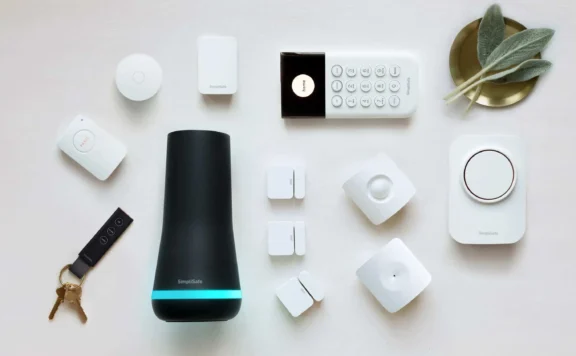
Review Abode’s HomeKit integration page before pairing devices. Start with the Smart Security Kit for a sensor-led alarm base and check current plans for the history, cellular backup, and monitoring choices that affect where alerts and response paths travel.
Official and related guides
- Apple Home scenes and automations
- HomeKit security setup checklist
- HomeKit troubleshooting guide
- Security automation checklist
- Security camera privacy guide
FAQ
Does removing someone from Apple Home remove alarm-app access?
Not necessarily. Review the alarm, camera, lock, and monitoring accounts separately.
Should a HomeKit routine automatically unlock a door?
Avoid using one presence, voice, or motion signal for a high-risk action. Keep unlocking behind an authenticated step.
Where are HomeKit camera recordings stored?
Storage depends on the camera, HomeKit Secure Video support, vendor settings, and any local or cloud service. Check the exact model and account.
August 2026 update: run HomeKit privacy as an operating routine
HomeKit can put locks, cameras, sensors, scenes, and household access in one interface. That convenience also creates a privacy job: you need to know who can see or control each device, which app owns each setting, what is recorded, and what happens when an account, hub, phone, or internet connection fails.
This update turns the privacy guide into a working checklist. It does not assume that adding an accessory to Apple Home moves every setting or every record into Apple Home. A camera maker may still own firmware, local storage, cloud clips, detection zones, support logs, and billing. An alarm provider may still own arming rules, monitoring contacts, verification, dispatch, and event history. Write down those boundaries before relying on the system.
1. Build a privacy map before changing settings
Create one row for every security accessory, bridge, recorder, app, and account. Record the room, model, owner account, invited users, recording location, subscription, notification path, and recovery method. Include devices that appear indirect, such as the router, Apple TV or HomePod used as a home hub, camera recorder, and any shared iPad.
- Apple Home layer: rooms, favorites, scenes, automations, household invitations, and supported camera controls.
- Vendor layer: firmware, device-specific detection, storage, support access, exports, and subscriptions.
- Alarm layer: arming state, entry delays, monitoring contacts, verification, and emergency response.
- Network layer: Wi-Fi credentials, router administration, guest networks, DNS, and remote administration.
- Physical layer: keys, lock cylinders, keypad codes, recorder cabinets, reset buttons, and printed setup codes.
Do not use a single label such as “HomeKit controls it” when two or three services share the job. A useful map names the exact control point. For example: “Home app changes streaming state; vendor app changes motion zones; recorder stores continuous video; alarm app handles dispatch.”
2. Separate owner access from everyday access
Keep the home owner role limited to the people who need to invite others, remove accessories, or change home-wide settings. Everyone else should receive only the access required for the job. Review Apple’s current instructions for sharing control of a home, then compare that access with permissions inside every vendor app.
For each resident, guest, cleaner, contractor, caregiver, or house sitter, record:
- Why access exists.
- Which doors, cameras, alarms, and rooms it covers.
- Whether remote control is needed.
- Whether live video, recordings, or notifications are needed.
- The start date, review date, and removal date.
Test permissions from the invited person’s device. An owner’s screen is not proof of what another person can see. Use the shared-user camera access audit to check live view, recordings, downloads, microphone controls, and revocation. For short stays, the HomeKit house-sitter checklist gives a tighter issue-and-revoke routine.
3. Secure Apple Accounts and recovery before an incident
Every person with home access should use a unique Apple Account password, two-factor authentication, a current trusted phone number, and a device passcode that is not shared as a household secret. Review signed-in devices and remove devices that are sold, lost, or no longer used.
Recovery needs two controls at the same time: it must work when the owner loses a phone, and it must not give routine guests an easy path to take over the home. Store recovery information in a protected password manager or sealed household record. Do not keep the only recovery copy in the same phone that may be lost.
If personal safety or unwanted access is a concern, run the Apple Safety Check and HomeKit security audit. Treat unexplained invitations, unfamiliar devices, changed recovery details, or unexpected camera access as an incident. Preserve screenshots and timestamps before making changes when evidence may matter.
4. Check home hubs, bridges, and remote control
A home hub can keep automations and remote access working when the owner is away. That makes hub placement, power, software updates, and network access part of the privacy plan. Apple explains the current hub setup and security behavior in its home hub guidance.
- List every Apple TV and HomePod assigned to the home.
- Confirm the intended home and room for each hub.
- Remove old hubs and factory-reset devices before sale or disposal.
- Put the router, hubs, bridges, and recorder on tested backup power when outage operation matters.
- Test local control with the internet disconnected, then test remote control after service returns.
Do not assume that a second hub is active backup merely because it appears in the Home app. Test the actual outage. The home hub redundancy guide covers placement, power, network paths, and recovery tests.
5. Set camera privacy room by room
Cameras need an explicit policy for location, field of view, audio, recording, notification, retention, and export. Apple’s camera setup guide explains supported Home settings, while the HomeKit Secure Video guide explains the current iCloud setup and requirements. Exact features still depend on the camera, software, plan, and region.
For every camera, answer these questions in writing:
- Can it see a bedroom, bathroom, neighbor’s window, public footpath, shared yard, or work screen?
- Is the microphone needed? If not, is it disabled in both Home and the vendor app?
- Who can view live video? Who can view or export recordings?
- Where are clips stored, for how long, and who can delete them?
- What happens when internet, hub, recorder, cloud plan, or power is unavailable?
- Which visible indicator, sign, or household notice is appropriate?
Use the HomeKit camera privacy-zone guide to test framing and masks. Walk through the real scene in daylight and at night. A zone that looks correct from the owner’s phone can still expose a doorway, mirror, window, or neighboring property when the camera switches to a wider view or night mode.
6. Treat locks and access codes as separate secrets
A smart lock has at least four access paths: Apple Home access, the lock maker’s account, keypad or guest codes, and the physical key or emergency power method. Review all four. Removing someone from the Home app does not prove their vendor-app account, keypad code, or copied key has been removed.
Use named codes instead of one shared household code where the lock supports them. Give temporary users a start and end time, then test the expired state. Keep a record of mechanical keys and never store the only backup key beside the door. After a resident, cleaner, contractor, or caregiver leaves, remove app access, revoke codes, collect keys, and check the event history.
Test privacy and safety together. A lock should not expose an access pattern through broad notifications, but occupants must retain safe egress and a working recovery route during a dead battery, jam, phone loss, or service outage.
7. Audit scenes, automations, and voice control
Scenes and automations can reveal occupancy patterns or trigger a security action at the wrong time. Apple’s scene and automation instructions show the current controls. Review each automation by trigger, conditions, actions, owner, and failure state.
Flag routines that use arrival, departure, sleep, camera motion, locks, garage doors, or alarm status. Ask whether the trigger is reliable for every household member and whether a false trigger could unlock a door, switch camera behavior, silence an alert, or signal that the home is empty.
Voice control needs its own test. Try commands from locked and unlocked devices, from shared speakers, and from outside an open window or door. Do not assume the response will be identical for every accessory. Keep high-impact actions behind the strongest confirmation the device supports.
8. Review vendor apps, phone permissions, and support access
HomeKit does not replace the vendor account. Open every security vendor app and review users, devices, sessions, firmware, location permission, local-network permission, microphone, photos, Bluetooth, notifications, analytics choices, and cloud storage. Use the home security app permission audit to record the result.
Grant “Always” location access only when a tested feature needs it. If geofencing is used for arming or camera state, test what happens when location permission is reduced, the phone is offline, or a resident leaves without the phone. Review any temporary support access or shared diagnostic link after the support case closes.
Before deleting an app or account, export records that must be retained and confirm which automations, recordings, codes, or subscriptions will stop. Account deletion, device removal, and factory reset are different operations.
9. Use a network plan that supports recovery
Change the router’s default administrator credentials, keep firmware current, disable remote administration unless it is required and protected, and keep the Wi-Fi password out of public notes or guest messages. Use a guest or isolated network when it works with the chosen HomeKit accessories and local discovery. Do not move devices blindly; test pairing, local control, hubs, bridges, live video, recording, and updates after any network change.
Keep an inventory of fixed IP reservations, recorder addresses, bridges, and firewall rules. A privacy control that prevents updates or breaks alerts can create a different risk. Record each change and its rollback path.
10. Plan for the five common failure states
| Failure | What to test | Privacy decision |
|---|---|---|
| Internet unavailable | Local lock control, sensor state, camera view, recording, notifications, and alarm communication | Document which evidence or remote controls disappear |
| Home hub offline | Local control, remote access, automations, and Secure Video behavior | Record the fallback hub and who receives the warning |
| Phone lost | Account lockout, trusted devices, code rotation, and replacement access | Remove the device and preserve incident evidence |
| Power failure | Router, hub, bridge, recorder, locks, cameras, and alarm backup | Decide which areas may stop recording and notify occupants |
| Vendor or plan unavailable | Local operation, exports, recordings, codes, and account recovery | Keep a tested exit path that does not depend on one cloud account |
11. Use a written incident routine
If a user, device, camera view, code, automation, or notification changes unexpectedly, do not start by resetting everything. First record the time, affected account, device, screenshots, event history, network state, and people present. The HomeKit incident documentation checklist gives an evidence-first sequence.
Then contain the issue: remove unknown access, secure Apple and vendor accounts, rotate exposed codes, update trusted phone numbers, and disable unsafe automations. Contact the vendor or emergency services when the situation calls for it. After containment, test every affected door, camera, alarm path, and recovery method.
12. Run this 60-minute HomeKit privacy acceptance test
- Minutes 0–10 — inventory: list residents, invited users, hubs, bridges, cameras, locks, alarms, recorders, and vendor apps.
- Minutes 10–20 — accounts: review Apple and vendor sessions, two-factor authentication, recovery contacts, and old devices.
- Minutes 20–30 — cameras: check live view, recordings, audio, zones, exports, retention, and each user’s actual view.
- Minutes 30–40 — access: test a resident, a temporary user, one lock code, physical backup, and revocation.
- Minutes 40–50 — failures: disconnect internet briefly, verify local behavior, reconnect, and confirm recovery. Schedule a separate power test if backup power is installed.
- Minutes 50–60 — record: save screenshots, note failures, assign owners and dates, and remove one access path that is no longer needed.
Pass only when the household can state who controls each security job, prove the expected permissions from the other user’s device, and recover from the tested failure. A settings screenshot without a live test is not enough.
13. Review quarterly and at every household change
Repeat the audit every three months and after a move, separation, new resident, caregiver change, lost phone, router replacement, camera move, subscription change, or major software update. The HomeKit move-in checklist covers ownership and reset checks for a new property. Keep the emergency access checklist current so privacy controls do not block safe entry during a real problem.
HomeKit privacy FAQ
Does adding a camera to HomeKit remove the vendor’s access?
No. The vendor app or account may still control firmware, settings, storage, support, or cloud services. Check both Apple Home and the vendor service.
Is removing a person from Apple Home enough?
Not always. Also remove vendor-app access, keypad codes, monitoring contacts, shared exports, and physical keys that person no longer needs.
Should every resident be an owner?
No. Give owner-level control only to people who need home-wide administration. Test the exact permissions provided to everyone else.
What is the first privacy test to run?
Open a camera or lock from an invited user’s device, then revoke that user and test again. This reveals whether access exists in Apple Home, a vendor app, or both.
What should be documented after the audit?
Record users, devices, storage, subscriptions, permissions, recovery paths, failures, actions, owners, and review dates. Store the record where an authorized person can reach it without exposing codes or recovery secrets.