Use this checklist after a security event, access problem, camera alert, automation failure, outage, or suspected account change. The goal is to preserve an accurate record without changing the scene, deleting useful history, exposing private data, or overstating what a HomeKit event proves. For an immediate threat or emergency, contact the appropriate emergency service first.
HomeKit can contribute timestamps, accessory state, camera footage, notifications, member access, and automation context, but the Home app is not a complete incident-management system. Apple documents current security-camera setup and access, HomeKit Secure Video storage and sharing, and Home accessory notifications. Record the exact device, software, iCloud+ plan, camera, bridge, service, settings, and user state that applied when the event occurred.
First 10 minutes: safety, scope, and preservation
- Address immediate safety, medical, fire, gas, electrical, water, access, or crime risks. Do not enter an unsafe area to inspect a sensor or camera.
- Write the date, local time, time zone, property, reporter, first observation, people present, active hazards, and action already taken.
- Do not reset a hub, router, camera, bridge, lock, alarm, phone, Apple Account, or accessory unless safety or recovery requires it. Record the reason before any change.
- Do not delete notifications, clips, device logs, access records, automation history, messages, support cases, or account emails. Preserve the original where possible.
- Assign one incident owner and one evidence custodian. Keep a change log for every screenshot, export, copy, rename, share, upload, setting change, reset, or device removal.
| Initial record | Exact fields | Why it matters |
|---|---|---|
| Event statement | Who noticed what, when, where, how, and which action followed | Separates direct observation from later interpretation |
| Property state | Doors, windows, locks, alarm mode, sirens, lights, cameras, network, power, people, animals, vehicles, and weather | Preserves context before routine activity changes it |
| Home state | Home name, owner, members, hubs, connected state, accessory state, camera state, active automations, scenes, and notifications | Shows what the Apple Home record displayed at the time |
| Related systems | Alarm panel, vendor app, camera app, router, recorder, lock app, monitoring service, property manager, and support cases | Prevents HomeKit from being treated as the only source |
| Preservation action | Original source, capture method, exported file, filename, timestamp, custodian, hash where used, storage, and shares | Creates a repeatable evidence trail |
Build one incident timeline
Use a single time zone and preserve each source’s original timestamp. Record clock drift instead of silently correcting it. A door contact, lock event, camera clip, phone notification, router reconnect, monitoring call, support email, and witness account may all use different clocks and delivery times.
| Timeline field | Record |
|---|---|
| Observed time | The timestamp shown by the original source plus source name and time zone |
| Normalized time | A working timeline time, with the conversion rule documented |
| Source | Home app, accessory, vendor app, camera, recorder, router, alarm, monitoring, phone, message, email, support, or witness |
| Event | Physical state, reported state, alert, recording, user action, automation, outage, reconnect, response, or recovery |
| Confidence | Direct observation, original record, export, screenshot, copied text, recollection, or inference |
| Conflict | Missing event, duplicate, delayed alert, clock mismatch, stale state, overwritten clip, or disputed account action |
Do not turn sequence into causation without evidence. “The light turned on before the camera recorded” does not prove the light caused recording, and a Home notification delivery time does not necessarily equal the physical event time.
Accessory state and alarm records
For each relevant contact, motion sensor, lock, keypad, siren, leak sensor, smoke or carbon-monoxide device, garage controller, light, plug, or automation, record the exact model, room, bridge or hub, physical state, Home state, vendor-app state, alarm-panel state where separate, battery, signal, trouble, event history, notification, and restoration.
HomeKit accessory state is not a substitute for a certified alarm or life-safety record. Preserve the alarm panel, monitoring, fire service, and vendor records independently. Use the broader home-security documentation checklist to reconcile models, zones, services, contacts, owners, and recovery methods.
Camera and HomeKit Secure Video record
Use the HomeKit camera evidence-export checklist for a full clip workflow. For each relevant view, preserve the camera model, lawful view, privacy zone, audio state, indicators, power, network, bridge, recording mode, detection settings, activity zones, classification settings, iCloud+ state, sharing, retention, clip start and end, first useful frame, gaps, timestamp, playback, and export.
- Screen-record or photograph the relevant Home timeline before routine retention or account changes can alter it, where lawful.
- Export the complete relevant clip and enough time before and after it to show context. Do not trim the only copy.
- Open the export on a second device. Record filename, format, duration, resolution, audio, timestamp display, and whether it plays without the source app.
- Keep the original export read-only where practical. Work from a copy for redaction, annotation, compression, or sharing.
- Record every recipient, method, date, purpose, and version. Share the least private version that meets the need.
Notifications and unavailable-phone evidence
A missed notification can result from accessory state, hub state, camera settings, automation conditions, network delivery, account permissions, phone settings, Focus modes, power, or user action. Use the HomeKit notification-reliability checklist to preserve recipients, settings, conditions, phone state, delivery delay, duplicates, misses, acknowledgment, and escalation.
Record the primary phone and at least one backup route. Do not infer that no event occurred solely because one phone did not display an alert. Compare Home, vendor, alarm, router, monitoring, and witness records.
Members, guests, installers, and account access
Record the Home owner, members, camera permissions, remote access, invitation state, vendor accounts, alarm users, lock codes, installers, property managers, shared links, signed-in devices, recovery methods, and recent changes. Separate “could access” from “did access.” Permission alone does not prove an action.
If access must be revoked, preserve the pre-change record first where safe. Then follow the HomeKit member-removal checklist and account-recovery guide. Record the exact change, time, operator, affected sessions, failed old access, and successful backup-owner test.
Automations, scenes, and false causal stories
For each relevant automation or scene, preserve the name, owner, trigger, conditions, time rules, presence rules, accessories, expected action, actual action, vendor automation, disabled state, recent edits, and failure behavior. Manually running a scene after an incident does not prove it ran during the incident.
Reproduce only in a safe test environment. Do not repeatedly trigger locks, garage doors, sirens, life-safety devices, dispatch, or private cameras. Label every recreation as a test and keep it separate from the original timeline.
Power, internet, hub, bridge, and clock failures
Use the HomeKit emergency-preparedness checklist for outage records. Preserve utility timing, UPS or battery state, router and access-point logs, hub connected state, bridge state, camera recording, alarm communications, local warning, lock behavior, clock drift, queued events, app state, remote alerts, monitoring receipt, and restoration sequence.
| Failure | Incident questions |
|---|---|
| Internet loss | Which local jobs continued, which remote jobs failed, when was the loss detected, what queued, and what returned? |
| Router or Wi-Fi loss | Which accessories disconnected, which bridges remained local, what stale state appeared, and in what order did devices reconnect? |
| Home hub loss | Which remote access, automations, cameras, recording, notifications, and presence rules changed? |
| Bridge loss | Which accessories vanished together, what local controls remained, and did restoration create duplicates or wrong states? |
| Property power loss | What remained on backup power, for how long, what shut down cleanly, what clock drifted, and what required manual recovery? |
Chain-of-custody worksheet
| Item | Required record |
|---|---|
| Original source | Device, app, account, camera, recorder, message, email, document, witness, or support system |
| Capture | Operator, date, time, time zone, method, source state, filename, size, format, duration, and limitations |
| Integrity | Original retained, working copy made, hash where used, read-only location, backup, and access controls |
| Change | Rename, copy, trim, redact, annotate, compress, convert, upload, setting change, reset, or deletion |
| Share | Recipient, date, method, purpose, version, privacy redaction, and confirmation |
| Disposition | Retention owner, review date, lawful deletion, account closure, device reset, and backup deletion |
Privacy, insurance, police, and support sharing
Preserve first; share second. A clip can expose neighbors, children, guests, audio, access patterns, routines, addresses, account names, device identifiers, and security layout. Make a working copy for redaction and keep the original access-controlled.
Give an insurer, police service, attorney, property manager, vendor, or support team only the records needed for the stated purpose. Record the request, legal or contractual basis where applicable, recipient, version, delivery method, date, and confirmation. Do not publish incident material merely to create an off-site backup.
Recovery without destroying the record
- Preserve current Home, vendor, alarm, router, camera, monitoring, account, message, email, and witness records.
- Write the minimum change needed: revoke a member, change a code, secure an Apple Account, isolate a device, replace a battery, restore a hub, or contact monitoring.
- Apply one approved change at a time. Record operator, time, old state, new state, affected jobs, unexpected effects, and rollback route.
- Test direct zones, local warning, cameras, locks, notifications, automations, remote access, backup owner, outages, and recovery.
- Update the incident timeline, system documentation, maintenance owner, lessons learned, and next review date.
50-minute incident-documentation drill
- Minutes 0-7: declare a harmless test event, record safety, scope, owner, custodian, property state, Home state, and related systems.
- Minutes 7-16: collect direct sensor, lock, alarm, Home, vendor, notification, and witness records without resetting anything.
- Minutes 16-26: preserve one camera event, export it, open it on a second device, and record the original and working copy.
- Minutes 26-35: build the normalized timeline and document one clock difference, one missing record, and one alternative explanation.
- Minutes 35-43: review members, camera access, codes, automations, network, power, hubs, bridges, recovery, and privacy.
- Minutes 43-50: share a redacted test copy with the backup owner, record custody, delete only the approved test copy, and sign the lessons-learned record.
Where Abode fits
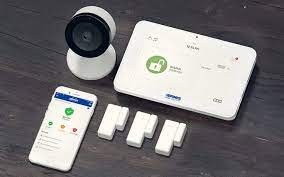
Apple Home can be a useful control and notification layer, but a security incident record should also include the system of record for direct sensors, alarm modes, local warning, monitoring, camera storage, and service state. Compare Abode’s Smart Security Kit and current plans for a directly purchased sensor-led route, then document its native app, HomeKit state, monitoring state, permanent unpaid state, and exports separately.
Frequently asked questions
Is a Home app screenshot enough evidence?
No. It can preserve what one device displayed at one time, but it may omit original event data, clock context, delivery delay, source settings, access history, or the complete clip. Preserve the original source and export where available.
Should I reset a Home hub after a suspected account problem?
Not before preserving the current state unless safety requires it. A reset can remove useful context and create new failures. Record the reason, backup path, and expected effect before any reset.
Does a HomeKit notification prove a door opened?
It proves that a notification was generated or displayed under a particular system state. Compare the physical contact, alarm panel, vendor app, event history, timing, and witness record before concluding what happened.
Can I edit or trim a camera clip before sharing it?
Keep the original export unchanged. Make a working copy for trimming, annotation, redaction, or compression, and record what changed and which version was shared.
How long should incident records be kept?
Set retention from legal, insurance, contractual, privacy, support, and household needs. Name the owner, review date, access controls, backup, lawful deletion method, and records that must remain longer.