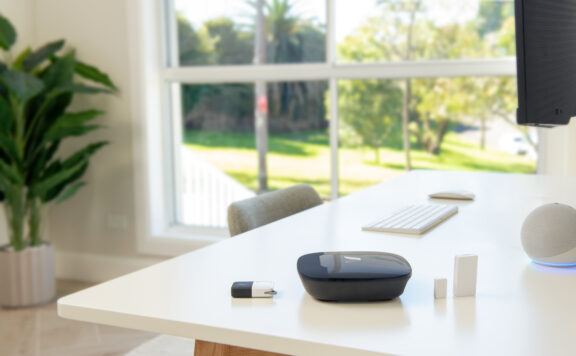
A HomeKit home hub can support remote access and automations, but redundancy is not automatic protection. A second hub can share some service risk while both hubs still depend on the same router, access point, outlet, internet connection, account, or room. Map those dependencies, place hubs deliberately, and test each failure instead of assuming “Connected” means resilient.
Home hub dependency map
| Layer | What can fail | What to verify |
|---|---|---|
| Home hub | Power, software, account, heat, local network | Current status, placement, updates, restart and recovery |
| Router and Wi-Fi | Power, internet, DNS, band/coverage, isolation | Hub connection, accessory paths, guest/VLAN rules, outage behavior |
| Thread or bridges | Border router, bridge power, range, firmware | Which accessories depend on each bridge or fabric path |
| Apple Home account | Owner access, household permissions, recovery | Owner identity, recovery contacts, named members, removed devices |
| Security system | Alarm hub, sensor radio, siren, communications, plan | Which alarm jobs remain local when Apple Home is unavailable |
| Response | Notifications, monitoring, contact availability | Who acts when automation or remote access fails |
1. Record the current home architecture
List every eligible Apple home hub, its model, room, network connection, outlet, account, software status, and whether Apple Home reports it connected or unavailable. Then list alarm hubs, camera bases, smart-lock bridges, lighting bridges, Thread devices, Wi-Fi accessories, and cloud services. The aim is to show which devices fail together.
2. Separate hub redundancy from network redundancy
Two home hubs on one router and one power circuit can both disappear in the same outage. If continuity matters, assess router/modem power, access-point coverage, ISP failure, DNS, switches, Ethernet, and any approved backup power. Do not place unapproved power equipment on devices or circuits; follow manufacturer and electrical guidance.
3. Place hubs for coverage and recovery
Avoid putting every hub, bridge, and router in the same hot cabinet or dead zone. Use stable power, ventilation, and strong network coverage. Keep hubs where an authorized person can inspect or restart them without exposing alarm panels, camera recorders, or network equipment to visitors.
4. Map Thread and bridge dependencies
A HomeKit accessory may connect by Wi-Fi, Thread, Bluetooth, or a manufacturer bridge. Record the exact path rather than treating all accessories as direct HomeKit devices. If a lock, contact sensor, or camera depends on a bridge, test that bridge as its own failure point. A second Apple home hub does not replace a failed manufacturer bridge.
5. Keep intrusion security independent where possible
Door/window sensing, local arming, entry delay, a siren, backup communication, and monitoring should not depend on a convenience automation. Verify what the security system does when Apple Home, internet, Wi-Fi, or the preferred home hub is unavailable. Compare the Abode Smart Security Kit and current Abode plans for the exact alarm, battery, cellular, automation, and response behavior required.
6. Run one failure at a time
- Record the starting hub, accessory, alarm, camera, lock, and automation status.
- Disconnect internet while keeping the local network powered; test local alarm jobs, Home controls, cameras, and remote access.
- Restore internet, then power down one home hub using the manufacturer’s normal method.
- Confirm which hub becomes active, how long status changes take, and which routines continue.
- Test one bridge or access point separately; do not reset it.
- Restore each layer and check timestamps, queued actions, notifications, recording, and alarm status.
Use test modes for monitored alarms and avoid disabling life-safety equipment. Document the result rather than repeating uncontrolled power cuts.
7. Test security automations by trigger and action
For each routine, write the trigger, conditions, action, authoritative system, and safe failure state. A lighting routine can fail dark; a door unlock or alarm-disarm routine can create risk. Do not let a single presence, voice, geofence, or motion event automatically unlock a door or disarm an alarm without a safer confirmation path.
8. Prepare for account and household changes
Keep the Home owner account recoverable, use named household members, review permissions, remove former residents and unused devices, and record who can add accessories or view cameras. Store recovery information securely outside the shared home notes that guests can see. The HomeKit account recovery guide covers the account side in more detail.
9. Re-test after changes
Repeat the relevant tests after a router replacement, Apple home hub replacement, bridge update, accessory migration, new alarm plan, camera-storage change, household-member change, or major software update. Use the router replacement checklist and maintenance checklist to preserve a known-good configuration.
Build a HomeKit redundancy recovery chain
A second home hub only helps when the household knows which devices, networks, bridges, accounts, and power paths it depends on. Create one recovery chain from the security event to the person who must act: sensor or camera, bridge or Thread path, active home hub, router and internet, Apple Home notification, and household response.
Keep a current equipment and dependency record
Add every Apple TV, HomePod, bridge, router, access point, UPS, alarm hub, lock, camera, and critical sensor to the home security equipment inventory. Record the room, model, power source, network path, administrator, firmware state, and replacement owner. Do not store passwords or recovery keys in the shared worksheet.
For Thread devices, document which Apple home hubs and other border routers are present, then use the HomeKit Thread border-router checklist to test range, ownership, removal, and recovery. A device that happens to reconnect is not proof that the intended backup path worked.
Separate hub, network, and power failures
Test one failure at a time. First make the preferred home hub unavailable using a supported method while network and power remain normal. Next test broadband loss without cutting power. Then test the planned power-backup path. Use the internet-outage test log to record what stayed local, what stopped remotely, which notifications arrived, and how long recovery took.
A HomePod or Apple TV that stays powered cannot help if the router, access point, alarm bridge, or required switch fails first. Record battery age and measured runtime with the home security battery-maintenance guide. Keep life-safety devices and emergency egress outside experiments that could make them unavailable.
Test notifications after every failover
After the active hub changes, test each important event separately: entry sensor, lock state, camera event, alarm state, and any supported automation. Confirm the event appears on the intended phones and watches, not just in the Home app on the test device. The HomeKit notification-reliability checklist helps catch Focus modes, device permissions, stale household access, mobile-data limits, and event-specific notification settings.
Record the first useful notification time, the device that received it, and the person responsible. A successful automation without a useful human alert may still fail the security job.
Run a 45-minute HomeKit redundancy-chain test
- Confirm every resident knows the test window and stop conditions.
- Record the preferred and standby home hubs, their rooms, network paths, and power sources.
- Trigger one normal security event and capture the starting notification and automation result.
- Make the preferred hub unavailable using an Apple-supported method; do not factory-reset it.
- Wait for the Home app to settle, then record the active hub and any device marked unavailable.
- Repeat the same security event and compare alert time, automation, camera access, lock state, and alarm behavior.
- Test broadband loss separately while local power stays normal, then restore service and time recovery.
- Confirm household roles, remote access, notification delivery, and critical device state after recovery.
- Return every device to its approved state and update the inventory, outage log, and repair owner.
Pass: the expected standby hub becomes available, critical devices recover, important events reach the right people, and the system returns to a known state. Fail: the household cannot identify the active path, a critical event disappears, devices stay unavailable, permissions change, or recovery requires an undocumented reset. Fix one dependency at a time and repeat the failed step.
Quarterly redundancy checklist
- Confirm every intended home hub is online, updated, and assigned to the correct Home.
- Check router, bridge, alarm hub, camera base, and smart-lock battery or power warnings.
- Review household members, installers, old phones, recovery contacts, and camera access.
- Test one internet outage, one home-hub outage, and one bridge failure safely.
- Confirm the alarm still detects, sounds, communicates, and recovers as designed.
- Update the dependency map and store it without passwords or access codes.
Official and related resources
- Apple: set up your HomePod, HomePod mini, or Apple TV as a home hub
- Apple Home app overview
- HomeKit security troubleshooting
- Home security without internet
FAQ
Do multiple HomeKit home hubs guarantee failover?
No. They can reduce one hub as a single failure point, but shared power, router, account, bridge, internet, and placement dependencies still matter.
Does a second home hub back up a smart-lock bridge?
Not necessarily. If the lock depends on a manufacturer bridge, that bridge remains its own failure point.
Should alarm arming depend on Apple Home?
The dedicated security system should remain authoritative for detection, arming, siren, communications, and response. Treat smart-home routines as an added control layer.
How often should redundancy be tested?
Test quarterly and after network, hub, bridge, account, software, alarm-plan, or household changes.